Business Process Modelling and Business Activity Monitoring by Stefan Wörmcke


Objective

The objective of this exercise is make participants familiar how to prepare a BPM project for monitoring using BAM

Use Case Description

In this exercise participants will add measurements to a given BPM process:

Prepare BAM data structure

Open given BPM process

Enable BAM for the project

Create measurement indicators

Set measurement marks

Deploy process

Run process

Check BAM data objects

Prepare BAM data structure

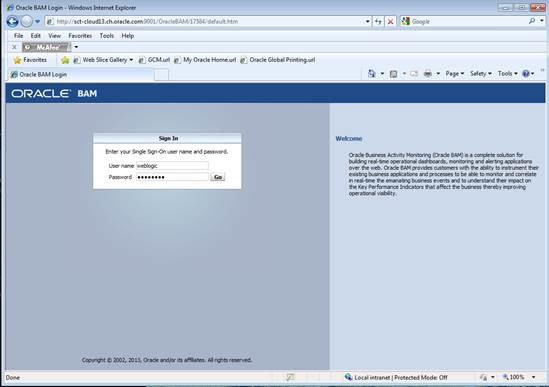
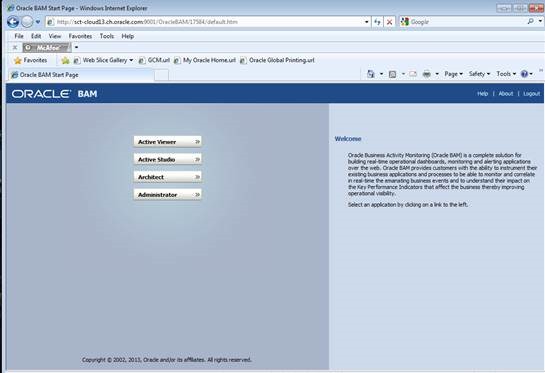
First step when using BAM is to organize the data you are gathering. For this you’ll have to log into BAM (http://hostname:9001/OracleBAM):
clip_image002

and from the menu choose the BAM architect:
clip_image004

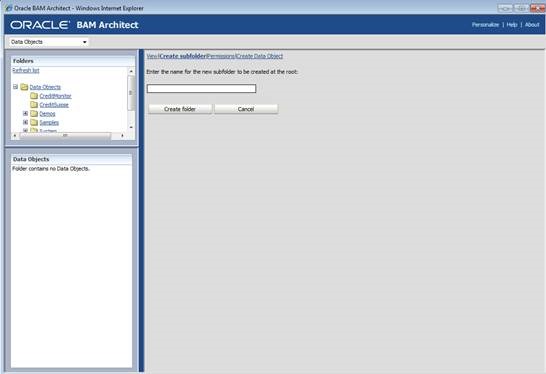
within the folder structure for data objects, create a new subfolder for storing your new data objects:
clip_image006

Open given BPM process

Your instructor should provide you with a file named “BAMTutorial.zip” Unzip the file and open the project using JDeveloper.

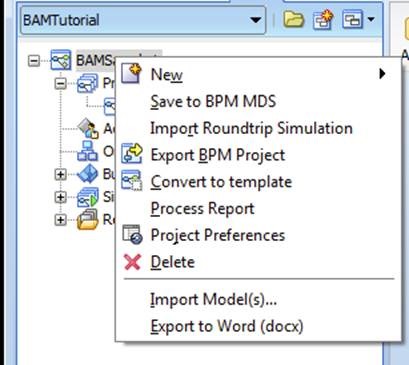
Select the project in the BPM navigation tree, and right click on the project to open project preferences:
clip_image008

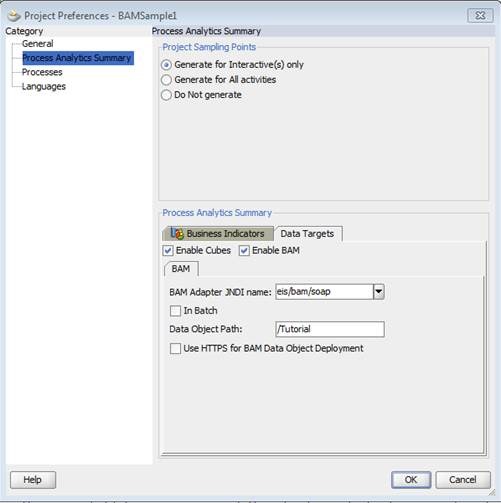
Select “Process Analytics Summary” on the left hand side and select the tab “Data Targets” below:
clip_image010

Here you have to check “Enable BAM” and enter the folder path you created in step 1.3

Click ok and your ready to deploy your project using BAM for monitoring!

Create Measurements Indicators

First step when using BAM in a process is to define what kind of data will be measured: you have to define business indicators. The basic indicators we use in this exercise are:

Dimensions: you use dimension to group data accordingly, e.g. grouping sales by region: North, East, South, West. If you base the dimension on numbers, you have to define ranges for grouping your data, like 0 – 1000, 1001 – 10000, etc.

Measurement: here you actually define the data you are interested in: quantity of ordered items, order total in USD, etc.

Counter: counter are somehow special in BPM: for each process instance their value will be 1 when set. Counters can be used for example to check which path of a process an instance was taken

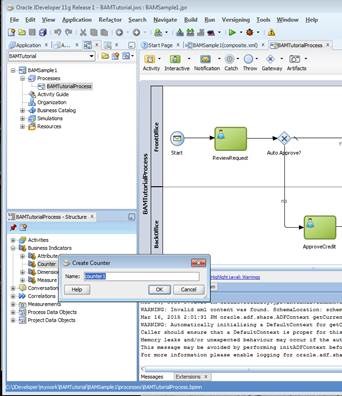
So for our demo process you will first create a counter: within the structure window of your process, expand “Business Indicators”, and right-click “counter” to create a new counter:
clip_image012

In the next step you’ll create two dimension:

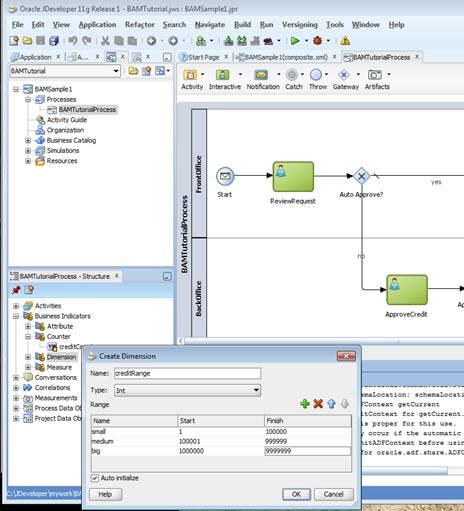
a dimension range (“credit range”):
clip_image014

as you can see here, for a numeric dimension you have to define ranges for the numbers you’re interested in

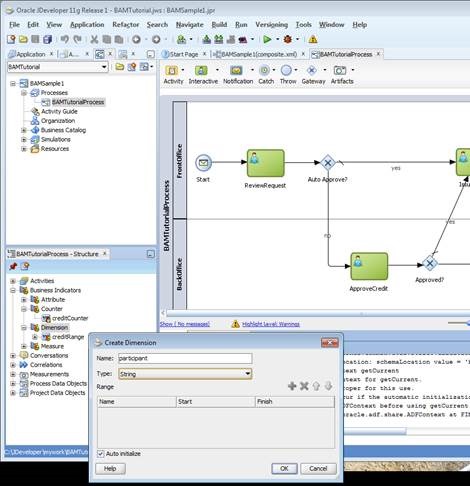
a dimension “Participant”:
clip_image016

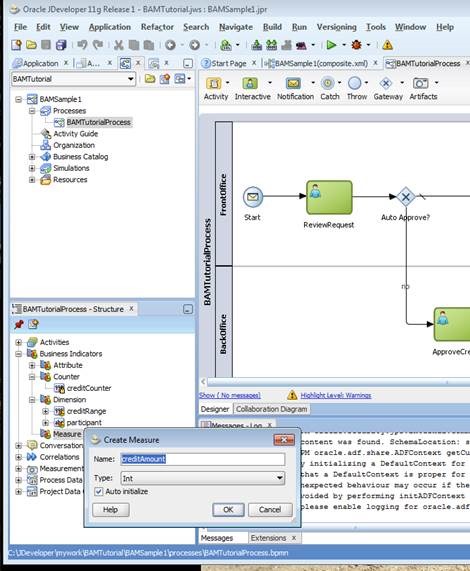
and finally you’ll create for measuring the amount within your process:
clip_image018

After completing each of the above steps, your list of business indicators should like this by now:
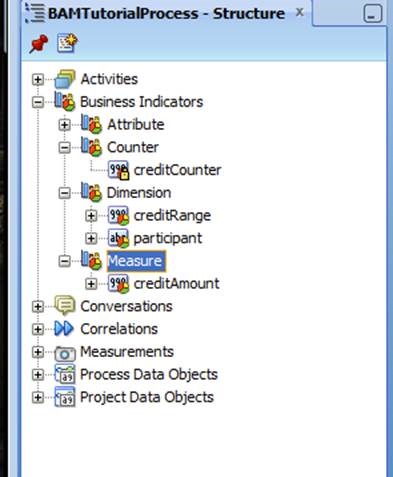
clip_image020

set measurement marks

As you have defined your indicators in the previous exercise, it’s now time set values when the process is executed.

To set dimension, you will use a script task: from the pallet, drop a script task between the start node and “review request”, and call it “Init Indicators”:
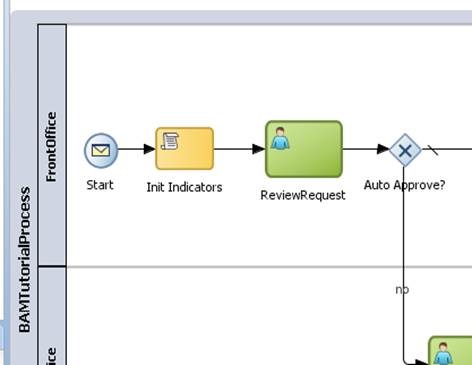
clip_image022

Double click the script task, got to implementation and set data associations:
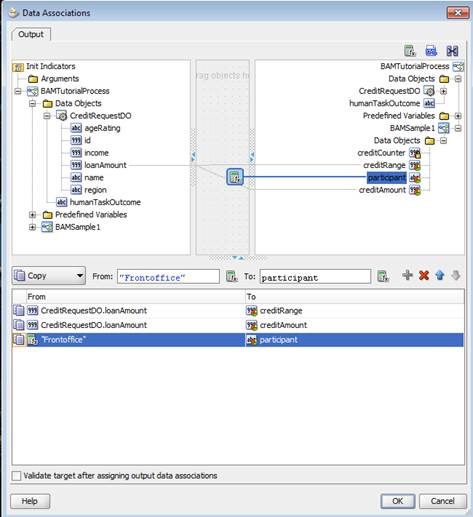
clip_image024

drag lines from left to right to do the associations:

drag a line from “loan amount” to “credit range” to set the dimension for the credit range

drag a line from “loan amount” to “credit amount” for setting the measurement for the credit amount

drop an expression on top of “participant” and assign the value “Frontoffice” to it. Although creating reports by human tasks is a standard measurement you’ll get when using BAM in a BPM process, this step is to demonstrate how to set various dimension you may want to use in future reports

For setting counters, you will have to right click a flow object where you want to set the counter:
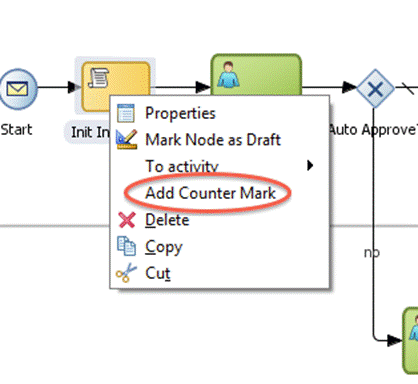
clip_image026

In the following dialog you will define which counter mark you want to set in this step.

Deploy the process

Deploying the process with BAM enabled is the same as deploying any other BPM process. The only difference is that you have to enable BAM in the project preferences before deployment.

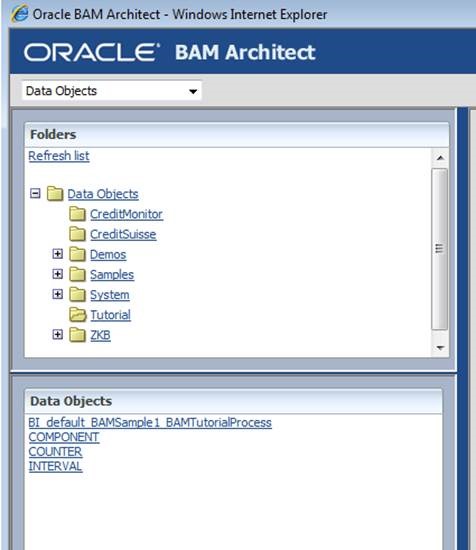
After successful deployment, log into BAM and start BAM Architect to verify that data objects for your process have been created:
clip_image028

Run the process

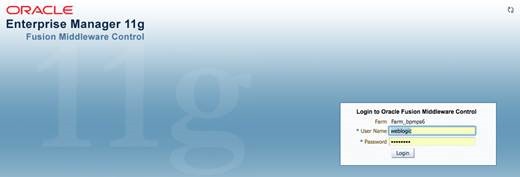
To check if data objects of BAM will be populated, you will have to run the process. You will use Enterprise Manager Fusion Control to test the process. Log into Enterprise Manager (EM), e.g. http://hostname:port/em:
clip_image030

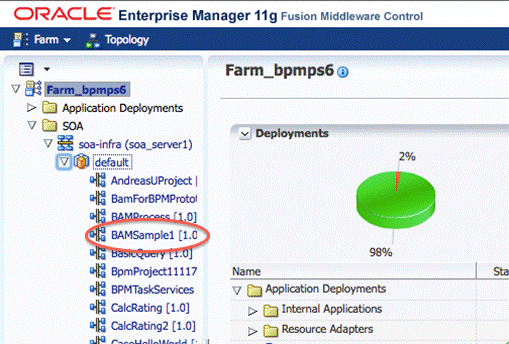
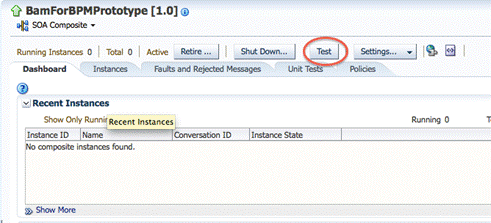
Select the BAMSample1 process in EM:

clip_image032

Cick on the TEST button for displaying the request form:
clip_image034

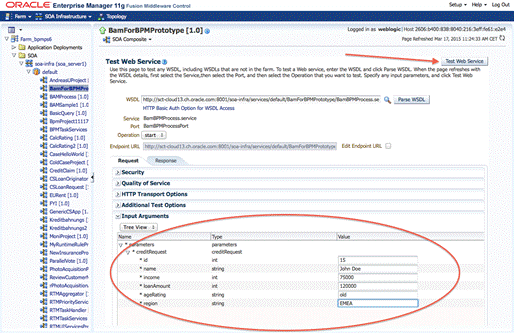
Enter some data for a credit request and start the process using “Test Web Service”:
clip_image036

This process consists of two human tasks which have to be fulfilled to finish the process. To ease testing, both activities should be assigned to the same user. This way you won’t have to login and out several times to finish the process.

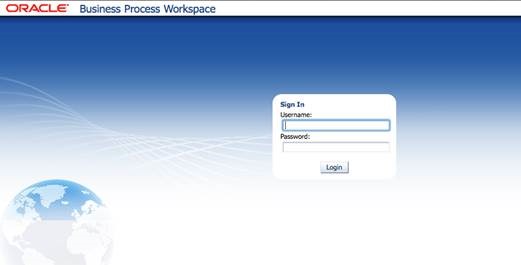
So log into BPM workspace (e.g. http://hostname:port/bpm/workspace) using the credentials of the user, to whom you assigned the human tasks:
clip_image038

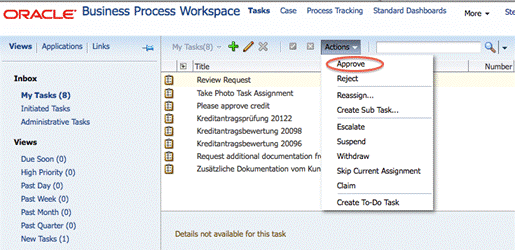
In your inbox, you’ll find the first assigned task “review request”:
clip_image040

Select the task in the list, click on “Actions” and approve it.

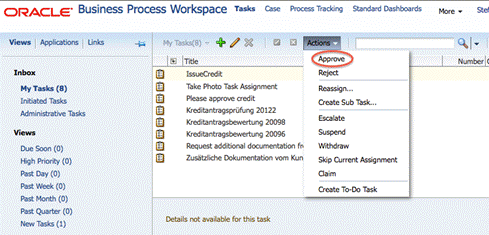
After approving the first task, you’ll find a second task in your inbox “Issue Credit”:
clip_image042

Like in the first part, do approve this task as well.

Now its time to check your data gathered by BAM. Start the BAM architect, and select the newly created Data Objects. Navigate around all data objects and observe the data.

Optional Exercise

Start the process several times with different data and different human tasks actions (approve or reject)

Add more business indicators to your project

Use the newly created business indicators in the project

Redeploy the project

Run the new version of the project and check the data objects

Objective

The objective of this exercise is make participants familiar how to create custom reports and dashboards

Use Case Description

In this exercise participants create a custom dashboard:

Create a dashboard

Add views to the dashboard

Format / change views

Doing a drill down into views

Learn about data objects

Create a dashboard

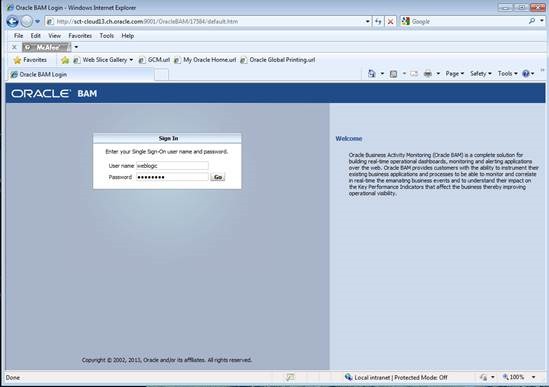
To create your first dashboard, you’ll have to log into BAM (http://hostname:9001/OracleBAM):
clip_image043

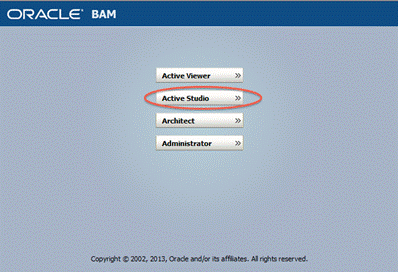
Then start active studio:

clip_image045

To create a new report, hit the button shown below:
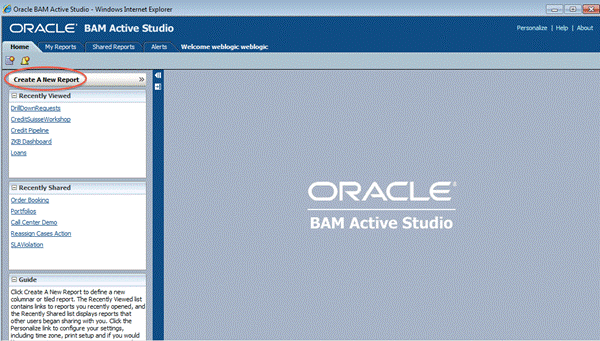
clip_image047

First you’ll have to choose the layout for your report, in our exercise we’ll choose a format with a title bar and 4 frames for the views we will insert later:
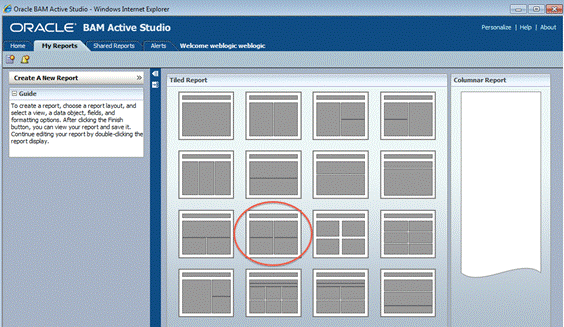
clip_image049

Click on the title bar to change the name of the title, for example: Tutorial

Within the 4 frames you’ll see icons for the various views for your report. “Streaming List, Bar Chart, Range Gauge,..” are all different kind of views you can create. You can also resize the frame of each view to fit your needs.

Start creating your first view by clicking on “Bar Chart” in the upper left frame:
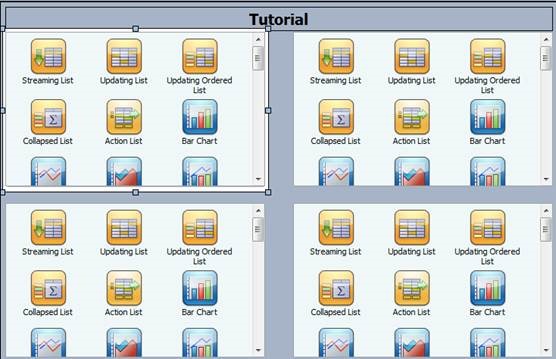
clip_image051

A wizard will start in the bottom guiding you through the definition of your view: data objects, data fields, formats, filters etc.

The first step is to define the data object for the report: navigate to the “Tutorial” folder and choose the “Component” data object, then click “Next”:
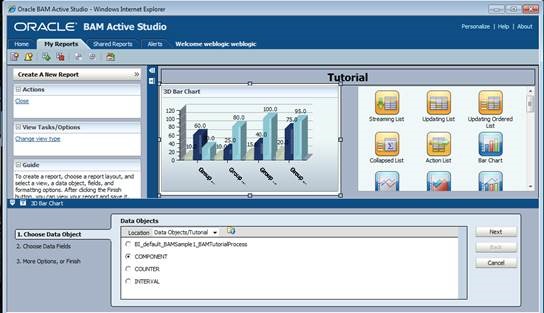
clip_image053

Next step is to define data fields and how we would like to group them: Choose “Component_Instance_Status” for grouping, and count the number of instances “Component_Instance_ID”:
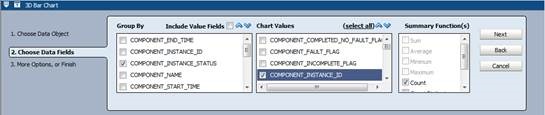
clip_image055

For this report, we don’t need e.g. a filter; finish your report by clicking the corresponding button:
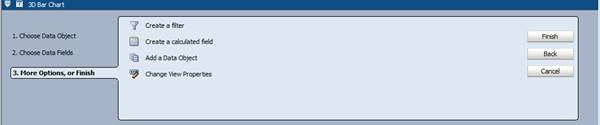
clip_image057

Before proceeding with the exercise, you should save your report. Hit “Save Report AS”, and create a new subfolder:
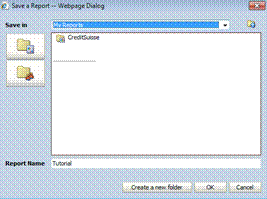
clip_image059

Enter e.g. “Tutorial” as the name for the subfolder:
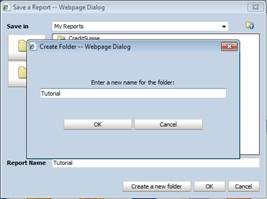
clip_image061

and finally give a name for your report and hit “Ok”:
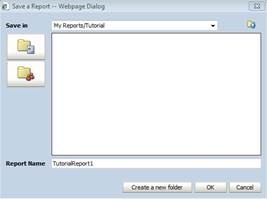
clip_image063

Let’s recap what we have done so far:

We created a new report by clicking on the corresponding icon. Then we defined where the data is located we want to use for reporting. At this point it is beneficial to make yourself familiar with the underlying data object(s) for your report. Therefor you can start the “Architect” from the Oracle BAM Start menu. For further details refer to your training material from the first BAM workshop.

For the data we want to show in the report, we’ve chosen to count the number of process instances, and group them by “Component_Instance_Status” – but why? Every instance we see in Oracle BAM can only have two conditions:

active: the process instances was started, but did not finish yet

completed: the process has finished

Now if we group the number of instances by status, BAM will count all instances with status “active”, and all instances with status “completed”. The result can be seen in our first view of our report:
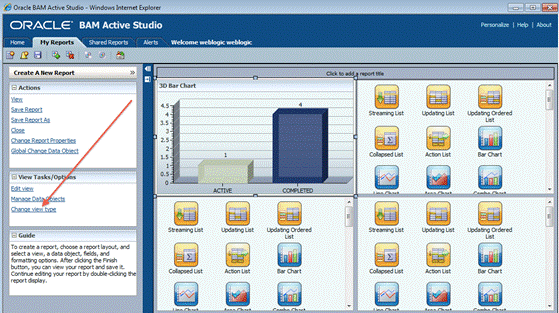
clip_image065

Next step is to change the view type: you will change the Bar Chart into a 3D Pie Chart. Therefor you will first click on “Change View Type” as illustrated in the screenshot above

And then choose the “3D Pie Chart” diagram:

clip_image067

This will change the diagram into a 3D Pie Chart:
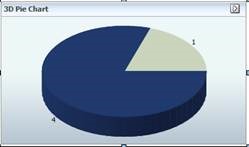
clip_image069

Double-click on the pie chart, and then choose “Properties” on the left hand side to change the title into “Open vs. completed request”:
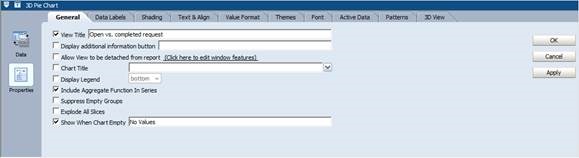
clip_image071

Finally hit “OK” to apply your changes.

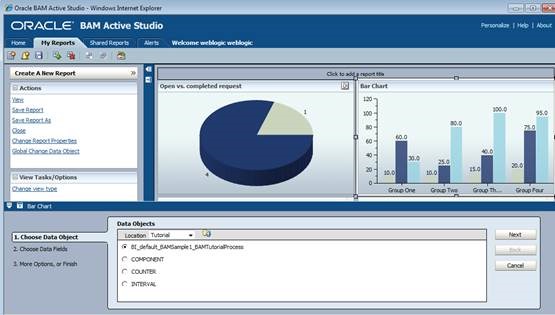
Now we will add another view. Therefor we will choose a “Bar Chart” in the upper right frame. The wizard will start, where you first define the underlying data object for the view, in our case “BI_default_BAMSample1_BAMTutorialProcess” (the actual name of the data object may vary, depending on the setup by your instructor):
clip_image073

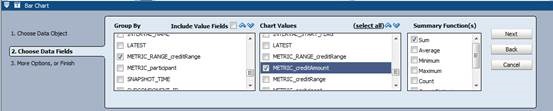
This time we will group our data by credit range, so we will display the sum of credit requests for each range:
clip_image075

ATTENTION: at this point you have to add a filter – why? Because each time a process instance will send payload data to BAM, a new entry will be generated. So if a process contains more than one measurement marks or invocation of BAM, one process instances will have multiple entries in the data object with the same payload.

Now in order to make sure you won’t sum up the same amount multiple times for one process instance, we have to make sure we summarize over the latest entry for an instance, therefor checking the “LATEST” flag.

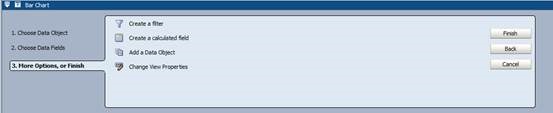
Click on “Create a filter”:
clip_image077

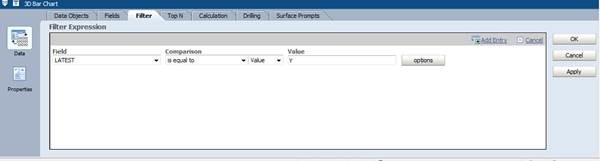
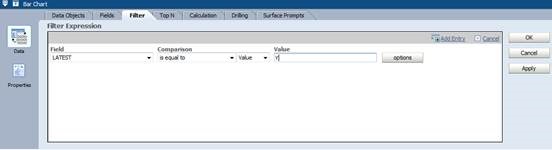
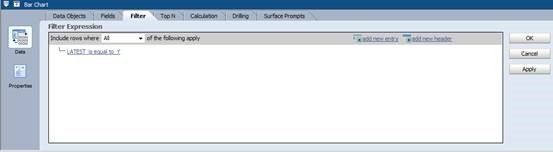
and then “Add Entry”. For the field, choose “LATEST”, set comparison to “is equal to” and enter “Y” as the value. When finished, hit “add entry” again:
clip_image079

your resulting filter should look like this by now
clip_image081

Click ok to finish your 2nd view.

The third view (lower left corner) will be a range gauge. Select the range gauge icon:

clip_image083

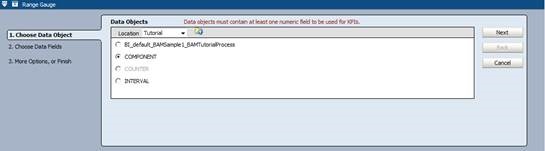
set the data object to “COMPONENT”:

clip_image085

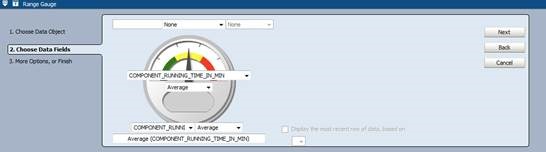
select “Component_Running_Time_In_Min” in the middle of the gauge and in the bottom, and select “Average”:
clip_image087

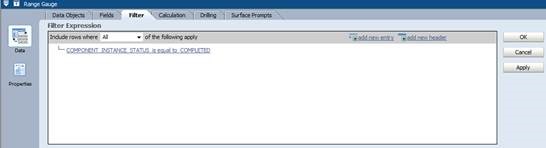
and filter for all instances, which are completed:
clip_image089

Click “Ok” to finish your settings.

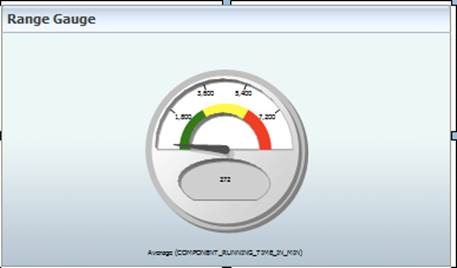
The resulting gauge may look like this (depending on the underlying data):
clip_image091

As you can see the scale doesn’t fit for our test data – the red area is around 7200 minutes, far too much for our purpose.

So we have to customize our green, yellow and read areas by customizing the low, medium and high ranges.

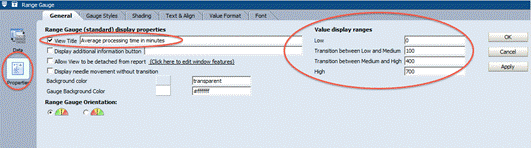
Double-click on the range gauge, select “Properties and set the values according to the screenshot below:
clip_image093

Depending on your test data, adapt values for the ranges accordingly, until you’re satisfied with the result.

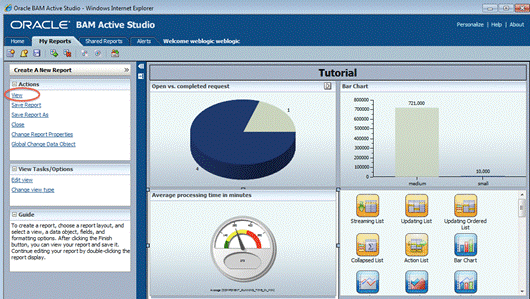
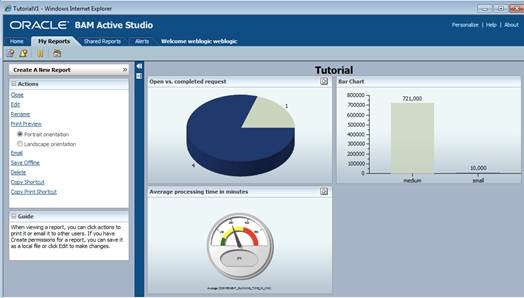
By now your report should look like the screenshot below. To exit the development mode and get a preview, click on “View”:
clip_image095

clip_image097

Optional Exercise – drill down

In order to do a drill down, we will first have to define a new report with exactly one view in it. Later this report will be exchange with the current view, from which you start your drill down.

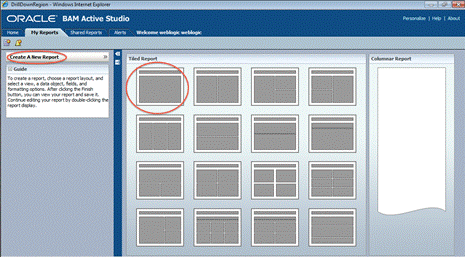
So let’s first start with creating a new report, selecting a template with one view:
clip_image099

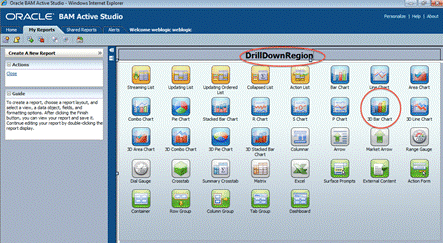
Change the name to “Drill Down”, and choose a “3D Bar Chart:
clip_image101

As data object, choose “BI_default_xx” (name depending on your data objects):

clip_image103

choose to group the sum of credit amounts by range:

clip_image105

and create a filter:

clip_image107

to only select the latest entry:

clip_image109

We will start the drilldown from our previously created report, from the “active vs. completed requests” view in the upper left corner.

Depending from which part of the view (active or completed) the user will start the drill down, we will have to pass this information to the report being called.

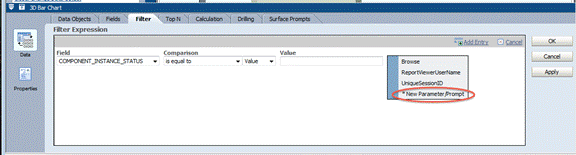
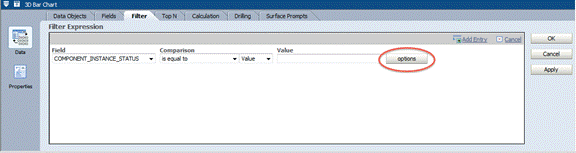
Therefor we will add another filter, the field we need here is “Component_Instances_Status”. To define the parameter, click on “Options”:
clip_image111

Choose “New Parameter Prompt”:

clip_image113

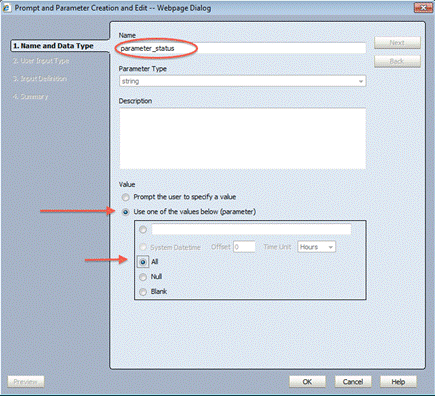
Give your parameter a meaningful name (e.g. “parameter_status”) , select “Use one of the values below (parameter) and then choose “All”:
clip_image115

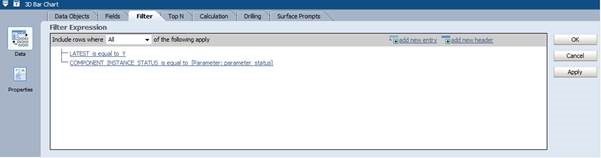
Now your filter should look like this:
clip_image117

Now we can save the new report, and switch back to our first report. Edit the report, and double click the 3D Pie Chart in the upper left frame. Click on “Properties” and choose the tab “Drilling”.

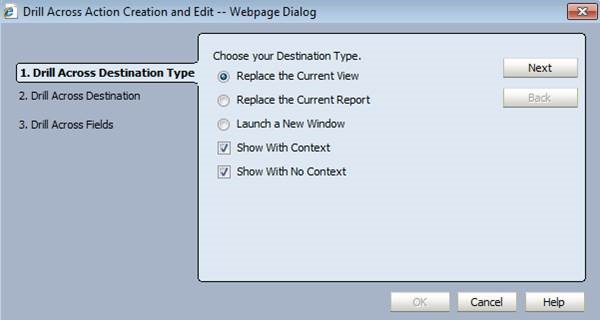
To define your Drilling Target (the new report), click on “New Target”:

clip_image119

select “replace the current view”:

clip_image121

click on next

Clicke on “Browse” to select your new report”:
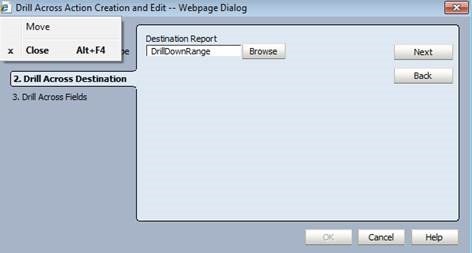
clip_image123

click next, and in the final page set the “Component_Instance_Status” to the newly created parameter (e.g. “parameter status”):
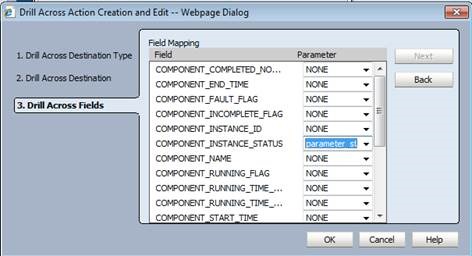

clip_image125

clip_image127

Stefan Wörmcke
Stefan Wörmcke is a Principal Sales Consultant at Oracle Switzerland focusing on SOA and BPM themes. Stefan started 15 years ago at Oracle Germany as a technical consultant for SQL and Java development, Oracle iStore (internet shop application), and application development using frameworks like Struts, Oracle ADF. As one of the first Middleware Sales Consultant for Oracle in Switzerland, he was covering the whole Oracle Middleware stack for some years, and is now focusing on BPM themes, helping customer enabling BPM initiatives throughout their organization. Architecture reviews, BPM best practices and hands-on workshops for customer and partner are just a few examples of Stefans’ activities to grow BPM adoption in Switzerland.

SOA & BPM Partner Community

For regular information on Oracle SOA Suite become a member in the SOA & BPM Partner Community for registration please visit www.oracle.com/goto/emea/soa (OPN account required) If you need support with your account please contact the Oracle Partner Business Center.

Blog Twitter LinkedIn image[7][2][2][2] Facebook clip_image002[8][4][2][2][2] Wiki

SOA & BPM Partner Community Webcast – November 24th 2015 get a SOA Suite 12.2.1 update


clip_image001Attend our November edition of the SOA & BPM Partner Community Webcast live on November 24th 2015 16:00 CET. Yogesh Sontakke will give an update on the brand new SOA Suite 12.2.1 version.

Visit the registration page here.

Call ID: 6965489 Call Passcode: 333111

Austria: +43 (0) 192 865 12
Belgium: +32 (0) 240 105 28
Denmark: +45 327 292 22
Finland: +358 (0) 923 193 923
France: +33 (0) 15760 2222
Germany: +49 (0) 692 222 161 06
Ireland: +353 (0) 124 756 50
Italy: +39 (0) 236 008 198
Netherlands: +31 (0) 207 143 543
Spain: +34 914 143 755
Sweden: +46 (0) 856 619 465
Switzerland: +41 (0) 445 804 003
UK: +44 (0) 208 118 1001
United States: 140 877 440 73
More Local Numbers

If you have difficulty logging in using the above link please go to: http://ouweb.webex.com/meetingcenter and join with session id: 591335749

Missed our SOA & BPM Partner Community Webcast? – watch the on-demand versions:

• Oracle Open World 2015 update

• SOA & API Cloud Service

• Solutions Catalog & Cloud Marketplace

• GSE demo systems

• Hybrid sales plays

For the latest information please visit Community Updates Wiki page (SOA Community membership required).

SOA & BPM Partner Community

For regular information on Oracle SOA Suite become a member in the SOA & BPM Partner Community for registration please visit www.oracle.com/goto/emea/soa (OPN account required) If you need support with your account please contact the Oracle Partner Business Center.

Blog Twitter LinkedIn image[7][2][2][2] Facebook clip_image002[8][4][2][2][2] Wiki

Fusion Middleware 12.2.1 is available

clip_image002
We are proud to announce the release of Oracle Fusion Middleware 12c (12.2.1.0.0). Media is being made available for download on the Oracle Technology Network (OTN), and the Oracle Software Delivery Cloud (OSDC). This includes the following products:

· Oracle WebLogic Server 12c (12.2.1.0.0)

· Oracle Coherence 12c (12.2.1.0.0)

· Oracle TopLink 12c (12.2.1.0.0)

· Oracle Fusion Middleware Infrastructure 12c (12.2.1.0.0)

· Oracle HTTP Server 12c (12.2.1.0.0)

· Oracle Traffic Director 12c (12.2.1.0.0)

· Oracle SOA Suite and Business Process Management 12c (12.2.1.0.0)

· Oracle MapViewer 12c (12.2.1.0.0)

· Oracle B2B and Healthcare 12c (12.2.1.0.0)

· Oracle Service Bus 12c (12.2.1.0.0)

· Oracle Stream Explorer 12c (12.2.1.0.0)

· Oracle Managed File Transfer 12c (12.2.1.0.0)

· Oracle Data Integrator 12c (12.2.1.0.0)

· Oracle Enterprise Data Quality 12c (12.2.1.0.0)

· Oracle GoldenGate Monitor and Veridata 12c (12.2.1.0.0)

· Oracle JDeveloper 12c (12.2.1.0.0)

· Oracle Forms and Reports 12c (12.2.1.0.0)

· Oracle WebCenter Portal 12c (12.2.1.0.0)

· Oracle WebCenter Content 12c (12.2.1.0.0)

· Oracle WebCenter Sites 12c (12.2.1.0.0)

· Oracle Business Intelligence 12c (12.2.1.0.0)

Here is the related information for these releases:

· Product Download (OTN, OSDC)

· Certification (OTN, My Oracle Support – MOS)

· Documentation

· Useful Support Note

You can also visit the Oracle Fusion Middleware page on OTN to find more information about the products.

SOA & BPM Partner Community

For regular information on Oracle SOA Suite become a member in the SOA & BPM Partner Community for registration please visit www.oracle.com/goto/emea/soa (OPN account required) If you need support with your account please contact the Oracle Partner Business Center.

Blog Twitter LinkedIn image[7][2][2][2] Facebook clip_image002[8][4][2][2][2] Wiki

Tweets SOA Suite 12.2.1

Please send your tweets @soaCommunity and use the #soaSuite12c & #soaCommunity

clip_image001

clip_image002Robert van Mölken

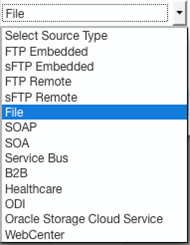
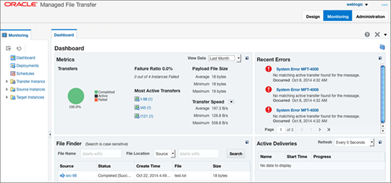
In 12.2.1 #OracleMFT can transfer Files to #cloud & #webcenter, redesigned in #AltaUI, new build-in actions & more!

clip_image005Rolando Carrascoclip_image004

We’ve upgraded 12.1.3.3 to 12.2.1. @ratoncita_nay here are some images @soacommunity

SOA & BPM Partner Community

For regular information on Oracle SOA Suite become a member in the SOA & BPM Partner Community for registration please visit www.oracle.com/goto/emea/soa (OPN account required) If you need support with your account please contact the Oracle Partner Business Center.

Blog Twitter LinkedIn image[7][2][2][2] Facebook clip_image002[8][4][2][2][2] Wikiclip_image007

Fusion Middleware 12c – Selective tracing by Michel Schildmeijer


clip_image002For doing a good diagnosis in case of a problem in your Oracle Fusion Middleware Product, the platform offers you many methods and techniques to do your investigation. The disadvantage from some of these methods is that they have some impact on your system, such as if you would raise the log or debuglevel or use diagnostic snapshots.

Selective Tracing is a facility available through Enterprise Manager to limit the scope of trace logging.This allows for debugging of a production system without overloading the system with logging activity. To use Selective Tracing, perform the following method:

1. On the left expand ‘WebLogic Domain’
2. Open Enterprise Manager: http://<your host>:7001/em

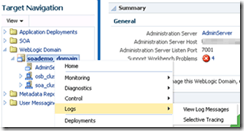
3. Right click your domain name -> Logs -> Selective Tracing. This will bring you to the following screen where you can configure your Selective Tracing session. Click on add fields and select as below: Read the complete article here.

SOA & BPM Partner Community

For regular information on Oracle SOA Suite become a member in the SOA & BPM Partner Community for registration please visit www.oracle.com/goto/emea/soa (OPN account required) If you need support with your account please contact the Oracle Partner Business Center.

Blog Twitter LinkedIn image[7][2][2][2] Facebook clip_image002[8][4][2][2][2] Wiki

OSB – Comparing Transformation Performance by Over de Auteur


clip_image001Introduction

In this post, I am looking into the relative performance of the transformation technologies in Service Bus 12c. Having searched the internet, I could not find a lot of specific information regarding the performance in Oracle Service Bus, but only qualitative opinions like “XSLT performs better for large documents”, or “Service Bus is optimized for XQuery”, without any supporting data [ORAFORUM].

Background

In an attempt to offload some of the production load from the SOA clusters, a migration project has been initiated to migrate services implemented in SOA Suite 11g (as BPEL processes) to the Oracle Service Bus cluster.

Although these services are not directly exposed to consumers, the intention is to reuse – without modification- as much artefacts as possible, including WSDL, JCA adapter definitons and the transformation logic – currently implemented in XSLT. Fortunately, the XSLT is version 1.0 since our Service Bus 11.1.1.6 does not yet support version 2.0.

Environment Setup

Although the environment where the question originates currently runs SOA/OSB 11g, migration to 12c is being planned. Liking life on the bleeding edge of technology, I decided to setup a test for 12c.

To quickly create a (reproducible) SOA 12c installation, I have used the scripts [BIEMOND] provided by Edwin Biemond to leverage Vagrant for the creation of two virtual machines (one for the DB and one for the middleware) (). Since my laptop has enough memory available, I have assigned 8 GB to the middleware virtual machine. Furthermore, the memory settings for the OSB-server have been increased to 1536 MB (initial = maximum memory).

On my laptop, I have also installed SoapUI [SOAPUI] (for functional testing – verifying that the testcase using different technologies yields the same result) and Apache Jmeter 2.13[JMeter] (for the actual performance testing).

Scenario Setup

For the time being I want to primarily focus on the relative performance of XQuery when compared to XSLT, over multiple transformations with varying payloads. So, the only metric I am interested in is the response time of the service, assuming that -with all other things being equal- equal actions will add equal overhead: the total response time of the service will be taken as the main indicator.

To support different transformations for testing, there should both be XQuery and XSLT versions of the transformation. Ideally, we should have different proxies per scenario and transformation technology, but actually I am too lazy to set up this scenario. Initially, I was thinking about setting up different testcases in the same proxy and switching between these testcases based on a value in the payload or operation, this has the suspicion that it works like a case statement (or nested if-then-else): evaluating the conditions for the fourth case might take more time than for the first case.

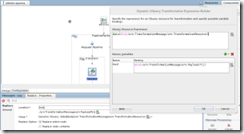
Fortunately, Service Bus also supports “Dynamic Transformations”[OSBDYNTRANS] for both XQuery and XSLT: this lets you dynamically assign the name of a transformation resource to apply, and also dynamically assign the payload to this transformation (see the Dynamic XQuery example below):

OSB Dynamic Assign Operation

The project I have come up with consists of a single proxy exposing a single operation and five pipelines: Read the whole article here.

SOA & BPM Partner Community

For regular information on Oracle SOA Suite become a member in the SOA & BPM Partner Community for registration please visit www.oracle.com/goto/emea/soa (OPN account required) If you need support with your account please contact the Oracle Partner Business Center.

Blog Twitter LinkedIn image[7][2][2][2] Facebook clip_image002[8][4][2][2][2] Wiki

SOA 12c–Creating ESS Job metadata by Siva


clip_image002In this post, We will use the EM Console to create ESS Job metadata  to call the Service Bus proxy services however the steps remain same for calling BPEL service too.

Configuration

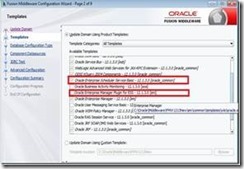
During domain creation, we should select the following options to create ESS Managed Server and EM Plugin for ESS. EM Plugin for ESS enable us to monitor and manage submitted ESS jobs.

You should see the EM Console as shown below on successful domain creation and starting the Admin and ESS servers. Observe that Scheduling Services is shown having ESSAPP. Read the complete article here.

SOA & BPM Partner Community

For regular information on Oracle SOA Suite become a member in the SOA & BPM Partner Community for registration please visit www.oracle.com/goto/emea/soa (OPN account required) If you need support with your account please contact the Oracle Partner Business Center.

Blog Twitter LinkedIn image[7][2][2][2] Facebook clip_image002[8][4][2][2][2] Wiki

Fusion Middleware 12C: Deploy the MDS using Maven by Hugo Hendriks


clip_image002In two previous posts here and here, I demonstrated how you can setup CI for OFM 12C projects. One of the things I hadn’t figured out yet was how I could deploy the MDS using Maven. After a vague hint on the internet, Oracle’s response that this feature wasn’t officially supported yet and some trial and error I came across the solution. It is actually quite simple.

Basically it comes down to this:

  • Create a zip file of the files you want to stick into the MDS
  • Use the com.oracle.soa.plugin:oracle-soa-plugin:deploy maven goal to deploy it

That wasn’t that hard as you can see clip_image003Let’s go into a bit more detail. You can use a command line to create the zip or use the maven-assembly-plugin to give you a bit more flexibility. I used the last option because I wanted to filter certain files. Within my Jenkins job, I checked out my MDS files and zipped them using the package goal into a file called sca-MDS_rev1.0.jar. Look in the plugin section in the pom file down below to see about the configuration of the assembly plugin. The pom file is just a copy of a normal soa composite project. Read the whole article here.

SOA & BPM Partner Community

For regular information on Oracle SOA Suite become a member in the SOA & BPM Partner Community for registration please visit www.oracle.com/goto/emea/soa (OPN account required) If you need support with your account please contact the Oracle Partner Business Center.

Blog Twitter LinkedIn image[7][2][2][2] Facebook clip_image002[8][4][2][2][2] Wiki

Accessing Oracle B2B metadata from your application by Tiago Teixeira


For some time now, Oracle B2B has exposed several methods of accessing it’s partner and message metadata from a custom application. This has been improved even further with B2B 12c.
In this post I’ll guide you through the 2 most common ways of accessing B2B’s metadata programmatically and some news of the 12c version.
The 2 main ways of accessing the metadata stored in B2B are:

  • Web Services exposed by B2B
  • Java API

Web Services exposed by B2B

You can access the WSDL’s for the available web services at the following URL:

http://host_name:port_number/b2b/services/

The most common services are:

  • Outbound Web Service – Works as an internal Listening Channel. Based on the details and headers in the soap:body, the agreement identification is done and the message is routed to the partner.
  • Translation Web Service – Allows to translate documents such as EDI and HL7 from Native to XML format (NativeToXMLService) and from XML to Native format (XMLToNativeService)
  • Query API (GetTPAConfigService) – Allows for retrieval of different metadata such as active agreements for a Trading Partner or checking if a Trading Partner has an agreement for a specific Document.

Read the complete article here.

SOA & BPM Partner Community

For regular information on Oracle SOA Suite become a member in the SOA & BPM Partner Community for registration please visit www.oracle.com/goto/emea/soa (OPN account required) If you need support with your account please contact the Oracle Partner Business Center.

Blog Twitter LinkedIn image[7][2][2][2] Facebook clip_image002[8][4][2][2][2] Wiki